










How to Stop Online Orders Going to a Location That Shouldn't Ship Them
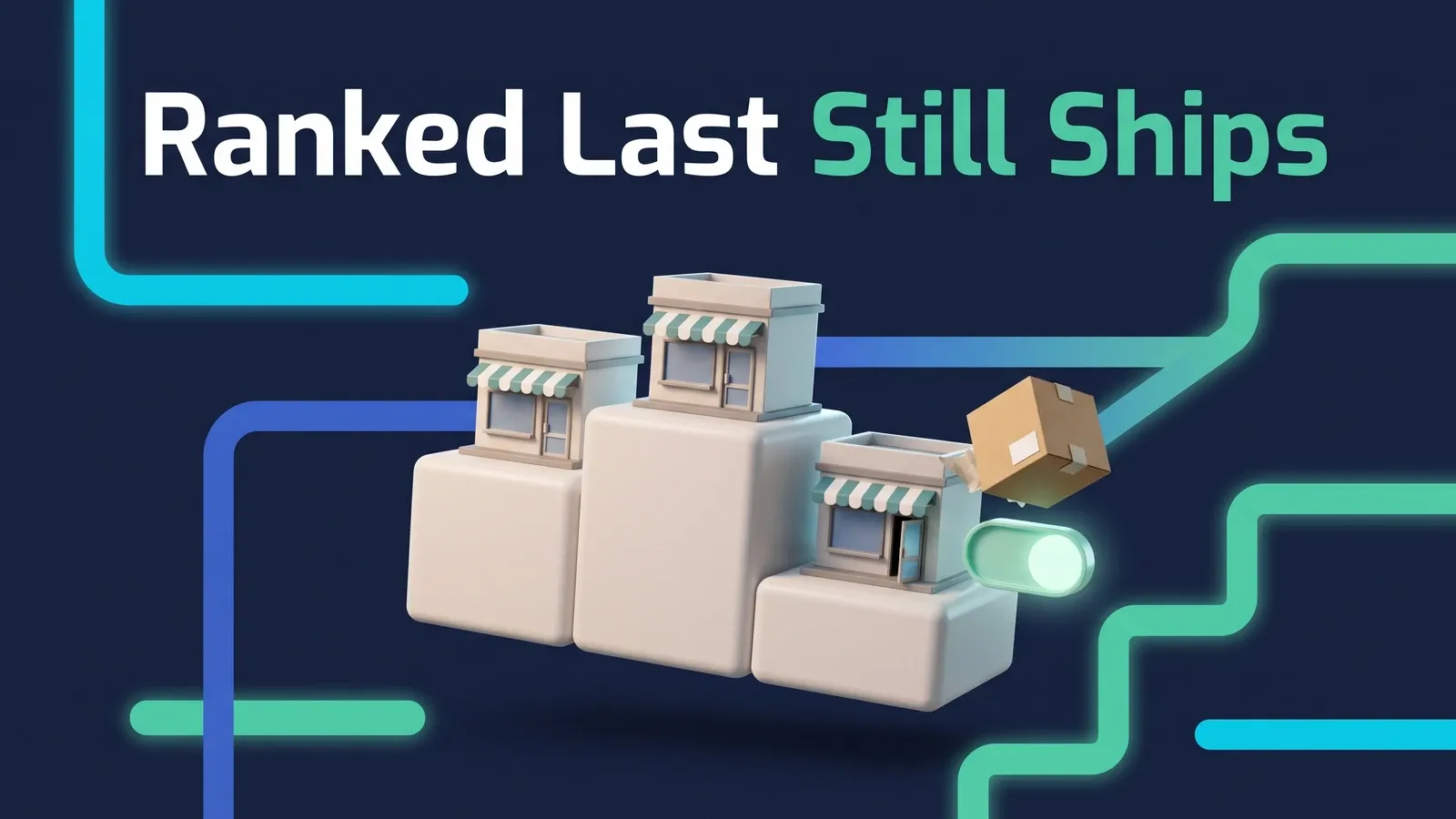
If online orders keep landing on a store, a stockroom or a warehouse that should not be shipping them, ranking that location last will not fix it. Ranking makes a location a lower priority. It does not make it ineligible.
In Shopify's help, two settings are documented as keeping a location out of online order routing: turning off the location's online fulfillment option, and leaving it out of any active shipping zone that covers the destination. Deactivating the location also stops it fulfilling, but it stops it selling too. Before changing anything, it is worth separating three jobs that are easy to blur: hiding stock, hiding a location, and blocking a location from shipping. They live in different settings.
Why does an online order land on a store that shouldn't ship it?
The troubleshooting section of Shopify's order routing help includes a line worth taking seriously: "Most unexpected order routing results are the rules working as designed." It then lists the causes to check, in order:
- The location doesn't fulfill online orders. A location that does not have online fulfillment turned on "is excluded from order routing."
- The location's address isn't verified. The "Ship from closest location" rule cannot measure distance to it, so it is skipped.
- The location was out of stock when the order was placed. What counts is stock at the time of the order, not now.
- The location isn't in an active shipping zone for the destination. Shopify adds: "The zone doesn't need to have rates."
- The customer's address couldn't be matched to coordinates. The closest-location rule is skipped "and your oldest location is used instead."
- Two locations ranked equally. "The older location is selected."
Two of those six fall back on a location's age. "Older" most plausibly means the location that was added to Shopify first, which is not necessarily the store that opened first, and after a platform migration it can be a warehouse or your default location. Either way, the rules have not misfired; nothing in them separated the two candidates.
There is one more behavior that surprises people. Shopify says routing "sometimes assigns an order to a location with no available inventory when another location has stock", and that this is expected: "the order is allowed through so that you don't lose the sale." An empty shelf is not a block.
Is ranking a location last enough to stop it shipping?
No.
Shopify's "Use ranked locations" rule works in groups. The help page's example tells you to "drag warehouse locations to the topmost location group" and to "leave any locations that shouldn't be prioritized in the bottom location group." Being left in the bottom group means the location is not prioritized. Nothing in that instruction takes it out of routing, and where an order finally lands also depends on the order of your other rules, such as closest location.
So decide first which locations should be candidates at all, and rank only those. Ranking is for preference; exclusion is a different setting. The routing logic itself is covered in more depth in which location should ship the online order.
Hiding stock vs blocking fulfillment: which one do you need?
Name the problem first. There are five common goals, and each points to a different setting. Where a platform's help does not document an effect, the table says so rather than guessing:
What you want | Setting | What the platform documents |
|---|---|---|
A store should not ship online orders | Shopify: turn off "Inventory at this location is available to fulfill online orders" | The location "is excluded from order routing." Effect on in-store selling and pickup is not spelled out on the pages cited here |
A location should serve only some countries | Shopify: keep it only in location groups whose zones cover those countries | Routing needs "an active shipping zone that covers the destination country" |
Some units are damaged, in quality control or held as safety stock | Shopify: mark those units Unavailable | They are "stocked at your location but isn't available to sell", on any channel |
A location should neither sell nor fulfill | Shopify: deactivate it | It "can't fulfill orders"; inventory quantities are not affected |
A location's details should not be shown, but it should still fulfill | BigCommerce: storefront_visibility false, location still enabled | Hides the location's details, not its stock |
The first row is the one most retailers want. Shopify's location setup page describes it directly: "If you don't want to make your inventory available for online purchases at this location, then deactivate the Inventory at this location is available to fulfill online orders option." The shipping troubleshooting page adds the other half, in full: a product needs "available inventory stocked at locations that fulfill the product (unless the option to Continue selling when out of stock is checked)." If continue-selling is on for a product, it can still be offered online.
The third row is a different tool. Unavailable takes units out of sale everywhere, which suits damaged or quarantined stock but is the wrong choice for a store that wants to keep units for walk-in customers.
The last row is BigCommerce, which separates the ideas explicitly. Its developer documentation says a location's enabled flag controls "Whether a location can be used to create orders and pickup methods" and whether its stock contributes to the "available to sell" total, while with storefront_visibility set to false, "the details of that location are omitted from the Storefront APIs." BigCommerce also notes that by default its Stencil storefront counts stock "from only the default location", so a product can show as out of stock while other locations hold it, unless aggregated stock has been enabled, which BigCommerce lists as available by request.
How do I limit a location to some destinations?
Use location groups inside the shipping profile. Shopify's example puts New York and London in one group that ships worldwide and Kansas City in another that ships only within the US. Routing follows the zones: a location "needs to belong to an active shipping zone that covers the destination country in the relevant shipping profile." The routing page phrases that requirement by country. If you need to exclude a location at state or province level, test with a real order before relying on it.
Three things to check while you are there:
- Every profile. A location group is "a collection of fulfillment locations created within a shipping profile." If a product sits in a different profile, that profile has its own groups.
- Combined rates. When an order needs locations in different groups, Shopify says "shipping rates of products are added together", so restricting a location may change what a mixed cart costs.
- Which shipping system you are on. Shopify's troubleshooting page notes that "shipping profiles and shipping rates are gradually moving to shipping options by market" and that "your store keeps its current setup until it's upgraded." Confirm which screens apply to your store before following any guide, this one included.
Should I deactivate the location instead?
Only if it should neither sell nor fulfill, such as a closed or seasonal site. Shopify says you can deactivate a location "if you don't want to sell or fulfill orders at a location." A deactivated location "can't fulfill orders" and stops appearing on product inventory cards, but its inventory quantities are untouched, and you can still transfer stock in and out, adjust counts and accept returns that restock.
It has conditions. You cannot deactivate your default location; a location on POS Pro has to be downgraded first; and any orders or transfers assigned to it have to be fulfilled or reassigned. Deactivated locations also do not count toward your plan's location limit, which store location limits covers.
The order already went to the wrong place. Now what?
For orders sent to a location without stock, or where the customer's address could not be matched, Shopify says to change the location of the fulfillment; in the first case it says you "can move inventory or change the location of the fulfillment before you fulfill it."
Then check what the order was placed under. Shopify asks you to "confirm whether your locations, shipping profiles, or routing rules were changed after the order came in."
A checklist, in order
Work through these for each location that keeps getting orders it shouldn't:
- Should this location ever ship online orders? If not, turn off its online fulfillment option, check its effect on pickup and in-store selling on that one location, and stop here.
- Should it serve only some countries? Keep it only in the location groups whose zones cover them, in every shipping profile its products use.
- Should it hold some products it never ships? Shopify shows a variant as inactive at a location when "On hand is recorded at a location but Available is a dash." Its help does not say that inactive variants are skipped by routing, so test before relying on it.
- Should some of its units not be sold at all? Mark those units Unavailable, knowing that applies on every channel.
- Only then, rank. Rank the locations that remain eligible, verify every address so the closest-location rule can measure distance, and add rules that separate locations so ties are rare. Age still decides when an address cannot be matched to coordinates.
- Test with a fresh order. An abandoned checkout "keeps the rates from when it was created, so it doesn't reflect your current settings." Place a new test order after each change and check where it was assigned.
If a location keeps getting orders after all six, take one affected order and walk it through Shopify's six causes above. Most surprises are, in Shopify's words, "the rules working as designed." Related: one source of truth for inventory across stores and marketplaces.
Frequently asked questions
How do I stop a Shopify store location from fulfilling online orders?
Open the location's settings and turn off "Inventory at this location is available to fulfill online orders." Shopify's routing troubleshooting says a location that does not fulfill online orders "is excluded from order routing." The option is "activated by default for each new location", and new locations are "added to the bottom of your order routing list", so check it every time you add one. Test the effect on in-store selling and pickup on one location first.
Does ranking a location last stop it from getting online orders?
No. Shopify's ranked-locations rule has you "leave any locations that shouldn't be prioritized in the bottom location group." Those locations are deprioritized, not removed, and where an order lands also depends on your other rules. Shopify also notes that when two locations end up with the same priority, "the older location is selected." To keep a location out of routing, turn off its online fulfillment option or leave it out of the zones for that destination.
What is the difference between hiding stock and blocking fulfillment?
Hiding stock keeps units from being sold; blocking fulfillment stops a location from being chosen to ship. They are separate settings. In Shopify, units marked Unavailable stay on the shelf and cannot be sold on any channel. Turning off a location's online fulfillment option is what keeps it out of routing. In BigCommerce, a location's details can be left out of the storefront while it stays enabled to fulfill orders, which hides the location, not its stock.
Start your 14-day free trial
See how OmniOrders connects your sales channels, 3PLs, and carriers into one operational layer — free for 14 days, no credit card.