










Staff Should Only Be Able to Fulfil From Their Own Store
Here is a sentence from Shopify's own Help Center that surprises many multi-store retailers: assigning a staff member to a store "doesn't impact their ability to view data for all locations, such as product inventory." With two stores that rarely matters. With ten, a person at one location can adjust a count that belongs to another, or fulfil an online order meant for a different store, and it may not be caught until the next count.
The request sounds like one setting: staff should only be able to fulfil from their own store. On most platforms it is not one setting. It is four separate controls, and each platform draws the line in a different place:
- Sign-in: which locations a person can log in to at the register.
- Seeing: whose stock and orders they can view.
- Changing stock: whose counts they can adjust.
- Fulfilling: whose orders they can pick, pack and mark as fulfilled.
The useful question is not "does my system support location permissions?" but "which of these four does it actually restrict?" The answers below come from each platform's own help pages, read on 7 October 2026. Plans and settings change, so check the current page for yours before relying on any of it.
What does "assigned to a location" actually restrict?
It depends on the platform, and the same phrase means different things.
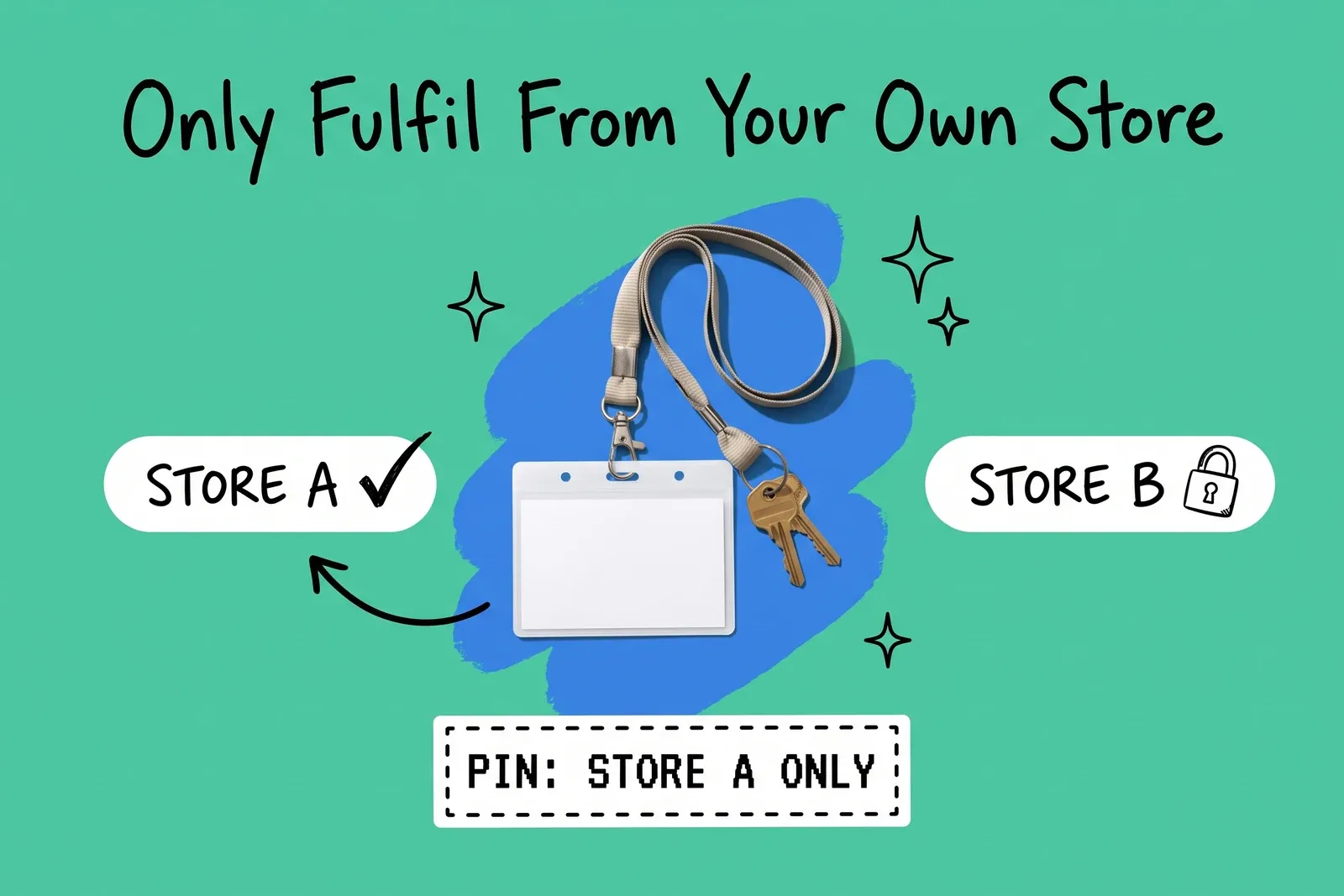
On Shopify POS, it restricts sign-in. Shopify's Help Center explains: "if you assign a staff member to your New York location, then the staff member can use their staff PIN to access only the New York location on the Shopify POS app." It is explicit about what that does not do: "When you assign retail locations to a staff member, this only restricts where they can use their PIN to access the POS app. It doesn't impact their ability to view data for all locations, such as product inventory."
Orders are narrower. On POS, staff are "restricted to viewing orders for the current location, unless they have the Manage orders at all locations permission."
How a staff member is added matters too. Added through the POS app, "they only have POS access and are assigned only to the location of that POS device." Added in the Shopify admin, "they're assigned to all locations unless you un-assign them from specific locations", and they can also be given admin access.
On Square, it limits what people can reach. Square's support article says: "Team members will only have access to data, menus, and features associated with their assigned locations," and "A team member assigned only to Location A won't have access to data or features associated with Location B." Permissions are then applied per location: you "assign the locations these permissions apply to".
On Lightspeed X-Series, it is set per outlet. Users are given access outlet by outlet, and managers can be granted reports "only for their assigned outlets". There is one fixed exception: "Admin users have access to all outlets by default and this cannot be changed." The same page notes that admins can edit manager and cashier users, while managers can only edit cashier users.
On BigCommerce, the documented location permissions are about the location records. Its user permissions page lists "View Locations" and "Edit Locations", which cover the Locations page and editing a location's details, alongside "Edit Inventory" and "Manage Orders", which the page does not scope to a location. We did not find a permission on that page that limits a user to one location's orders or stock.
Why does this matter once you have more than a few stores?
Because the stock record and the shelf only agree if the person who moves a unit is the person who records it, at the location where it happened.
Two kinds of cross-store mistake follow directly from how platforms record stock (this is our reasoning from the documentation, not a statistic):
- A count adjusted at the wrong location. A manager corrects a number while looking at another store's record. The store whose record changed now disagrees with its shelf, and the store that was counted still does.
- An order fulfilled from the wrong store. Shopify's default routing takes inventory from a location that can fill the whole order: "By default, if any location can fulfill the entire order, then the inventory is taken from that location." If staff at a different store pick and ship it without first changing the order's fulfilment location, the record says one store sent the unit while another store's shelf is the one that is short.
Neither shows up as an error. Both show up later as a count that is off at two stores, and each extra location adds another record to check when tracing one. Where orders should go in the first place is covered in which location should ship the online order.
What can you restrict on Shopify today?
Taking the four controls in turn, from Shopify's documentation:
Control | What the Help Center describes |
|---|---|
Sign-in at the register | Restricted by assigned retail locations (staff PIN works only there) |
Seeing inventory | Not restricted by location assignment ("doesn't impact their ability to view data for all locations") |
Seeing and handling orders on POS | Current location only, unless the person has "Manage orders at all locations" |
Fulfilling in the admin | "Fulfill and ship" is a separate permission; we found no per-location scope for it |
At the register, then, store staff work their own location's orders unless someone grants the all-locations permission. The admin is where the gap sits. The store permissions page describes "Fulfill and ship" as allowing "users to fulfill and ship orders", and "Edit orders" as allowing them "to add or remove line items from orders". The only location filter we found on that page is for B2B company locations, and it states that "all other pages in the admin won't be filtered by company." We did not find a Shopify help page describing a setting that limits an admin user's fulfilment or stock edits to one retail store. If you are on a plan or app that adds one, check its documentation directly.
The practical consequence: on Shopify, a store employee who only needs the register should have POS access only, with no admin permissions. Admin permissions are granted one by one, and any you grant, such as "Fulfill and ship" or inventory editing, apply across locations, so give those only to people who need them across stores.
How do you set it up so it holds?
Work through the four controls with a list of who needs what.
- Give each person their own PIN and their own admin account. Shopify notes that "all staff have a unique PIN to log in to the POS app." A shared admin login makes every control below unattributable.
- Assign register access by location. Use location assignment for what it does: limit where each person signs in.
- Keep cross-store permissions rare. On Shopify, "Manage orders at all locations" is the permission that widens order visibility on POS; give it to area managers, not to every store lead. On Shopify POS Pro you can also "create custom POS roles" before adding staff.
- Limit admin permissions. Store staff who only sell and hand over pickups at their own location rarely need the admin. Where someone does, grant only the permissions they need, knowing that fulfilment and inventory permissions there are not limited to one store.
- Check the trail weekly. Shopify's inventory adjustment history records "the staff member, app, or sales channel that made the adjustment", but only for "the last 180 days". A weekly look at adjustments by person and location finds a cross-store pattern while it is still small.
- Match the process to the permission. Where the system cannot block a cross-store fulfilment, the process has to: store staff work online orders from the register's current-location order view rather than the admin, and stock moves between stores only through a recorded transfer.
How many store locations your platform lets you use for pickup and fulfilment is a separate limit, covered in store location limits.
Which platform gets closest to "own store only"?
On the evidence of their own help pages, Square's documentation ties data and features to assigned locations most directly, though it does not separately address fulfilling online orders, so confirm that with Square. Lightspeed X-Series assigns access per outlet with a fixed exception for admins. Shopify restricts register sign-in and POS order visibility by location, but its documented location assignment does not limit inventory visibility, and we found no per-store scope on admin fulfilment. BigCommerce's documented location permissions govern the location records rather than who can act on each location's stock.
None of that ranks the platforms overall; it answers one question. If staff only fulfilling from their own store is a requirement, put it to your vendor as four questions, one per control, and ask for the documentation page that answers each.
Frequently asked questions
Can I stop store staff from seeing other stores' inventory in Shopify?
Not through POS location assignment. Shopify's Help Center says assigning retail locations "only restricts where they can use their PIN to access the POS app" and "doesn't impact their ability to view data for all locations, such as product inventory." On POS they are limited to viewing orders for the current location unless they have the Manage orders at all locations permission. Admin access is a separate grant to review on its own.
What does assigning a team member to a location do in Square?
In Square, assigned locations limit what a team member can reach. Square's support article says team members "will only have access to data, menus, and features associated with their assigned locations," and that someone assigned only to Location A "won't have access to data or features associated with Location B." Permission sets are then applied to the locations you choose, so the same person can have different rights in different stores.
How do I find out who changed stock at another store?
On Shopify, open the inventory adjustment history for the product or variant. Each entry shows the date, the event that caused the change and the staff member, app or sales channel that made it. The view covers only the last 180 days, so check it regularly rather than waiting for a year-end count. Pair it with per-person PINs and named admin accounts, so that each change is tied to a person rather than a shared login.
Start your 14-day free trial
See how OmniOrders connects your sales channels, 3PLs, and carriers into one operational layer — free for 14 days, no credit card.