










Shopify to QuickBooks Online: How to Sync Orders & Payouts Without Double Entry
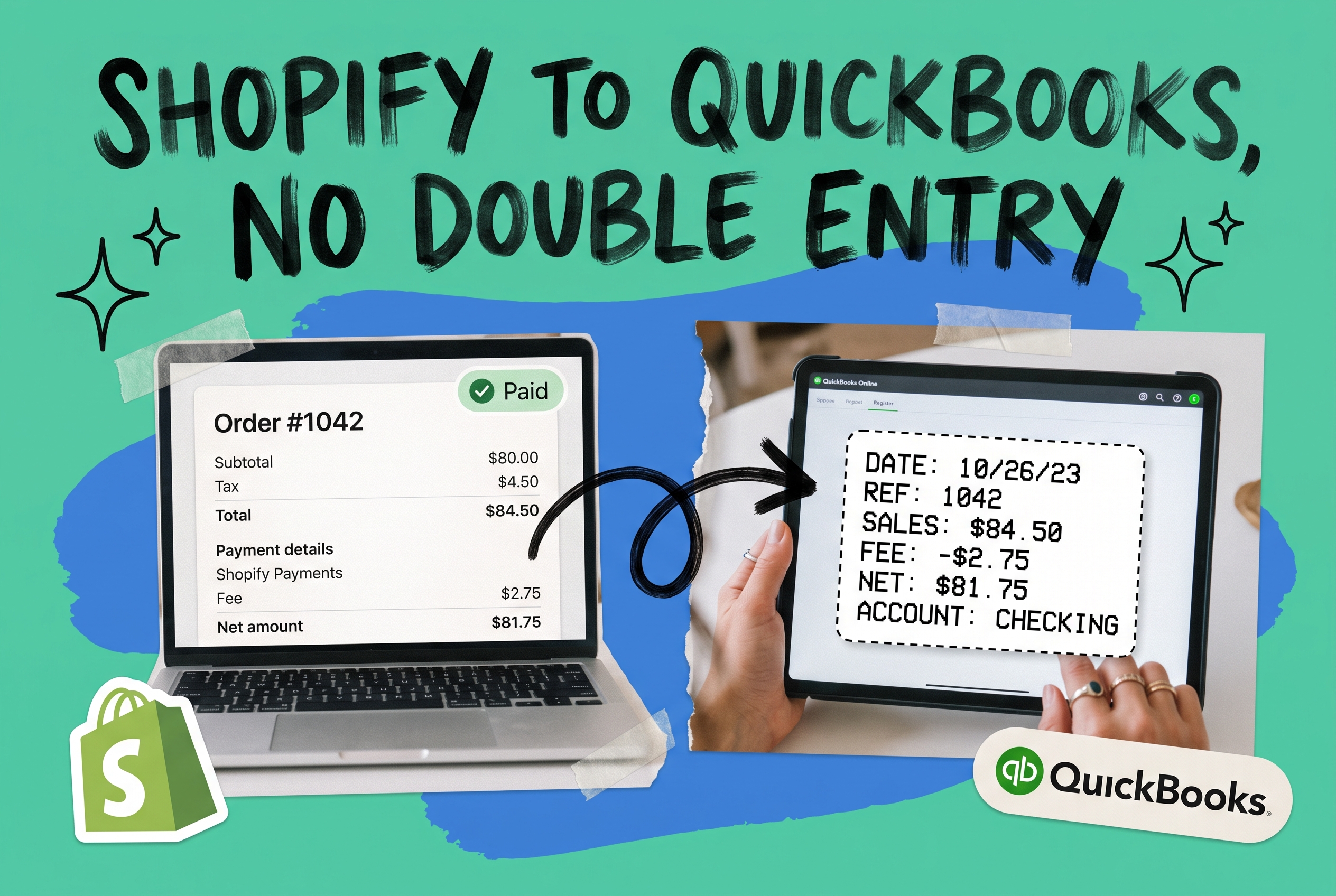
If you've tried connecting Shopify to QuickBooks Online and ended up with three entries for the same sale, a payout batch that reconciles to nothing, and a refund that landed in the wrong account — you're not making a setup mistake. This is where most sellers end up, and it gets worse the moment you add a second sales channel.
The problem isn't the sync tool. It's what's going into it.
This guide covers why the standard Shopify-to-QuickBooks connection breaks down, what actually causes the double-entry mess, and how growing multi-channel brands build a cleaner system — one that doesn't require two hours of manual reconciliation every Friday.
What "Connecting Shopify to QuickBooks" Actually Does
When you set up a basic Shopify-QBO integration, orders, refunds, and payouts move from Shopify to QuickBooks automatically. For a single-channel brand with clean volume, this works fine.
But Shopify doesn't send money the way QuickBooks wants to receive it.
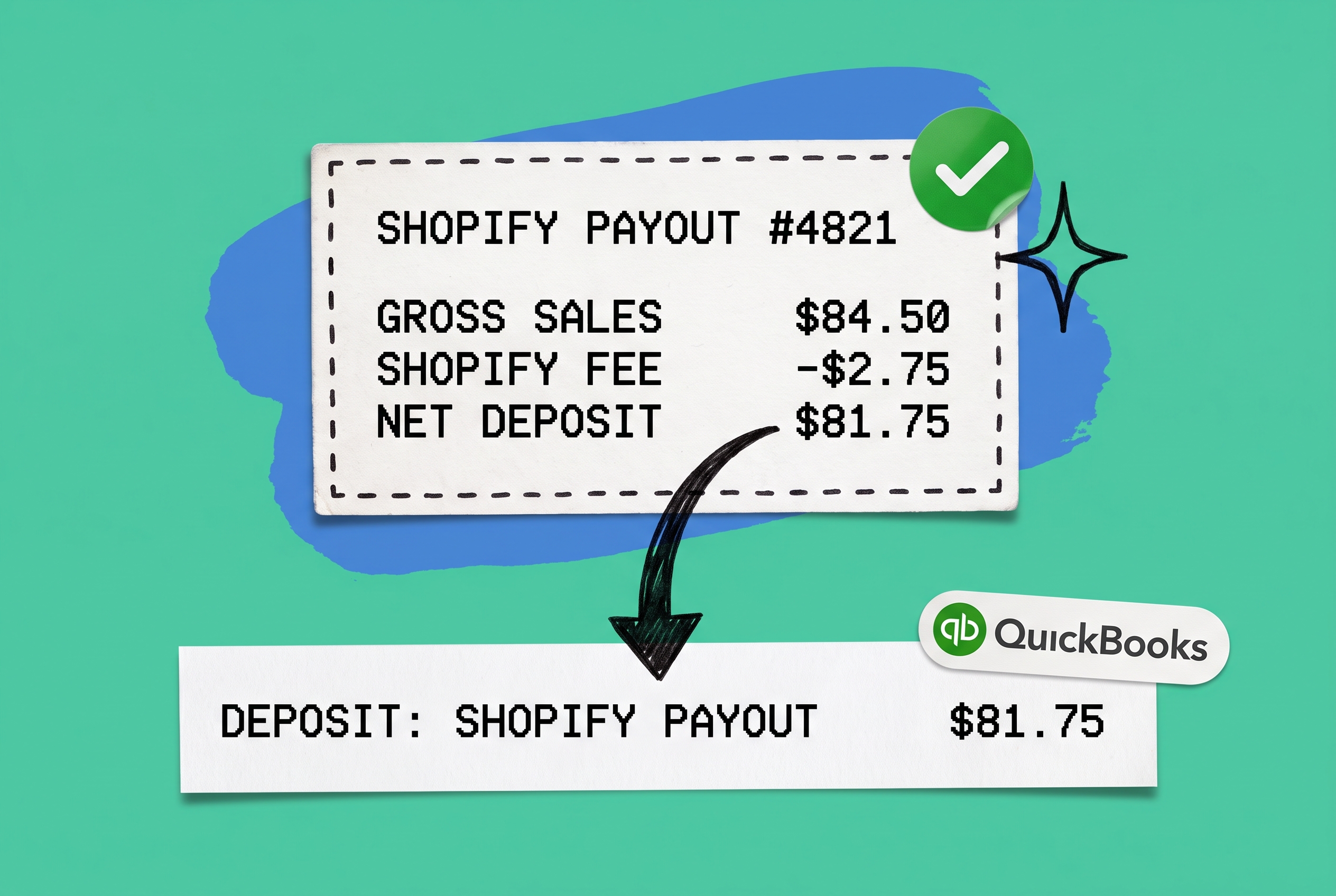
Shopify Payments pays out in batches — typically once per business day — and a single payout covers all orders settled in the previous window. If you sell 40 units of TSHIRT-BLU-M across Monday and Tuesday, you get one payout for both days, minus Shopify's processing fees. In QuickBooks, that payout lands as a single bank deposit. Your 40 individual order transactions live somewhere else. Matching them is a manual job.
Add a partial refund to one of those orders, and the refund hits in a different payout period entirely. Now you're reconciling three separate events for a single sale, none of which timestamp to the same day.
The Double-Entry Problem (In Plain Terms)
Double entry in accounting means every transaction has two sides — a debit and a credit. That's correct by design, and QuickBooks handles it properly.
The "double entry" problem multi-channel sellers run into is different: it's when the same order appears more than once, or when a transaction gets recorded in two places because data came from two different sources.
A concrete example: you run Shopify as your DTC channel. You also sell on Amazon. An order for SKU WIDGET-RED-LG comes through both channels on the same day. You push Shopify to QuickBooks via a connector. Amazon orders come in separately through a manual import or a second integration. At month end, you have overlapping revenue entries, mismatched fees, and no clean way to tell which inventory was drawn from which warehouse.
Multiply that across 500 orders a week and four sales channels. That's where the real cost lives — not in accounting fees, but in the hours your team spends un-tangling it.
Why Single-Channel Connectors Break at Scale
Accounting-sync tools like A2X, Synder, MyWorks, and Webgility do their job well — for the channels they cover. A2X is excellent at breaking down Shopify Payments settlements and mapping them to QBO correctly.
The gap appears when your business grows past Shopify. Each marketplace has its own settlement schedule, fee structure, and refund timing. Amazon settles every two weeks. eBay runs on a rolling payout cycle. Walmart Marketplace operates on its own timeline. None of them align.
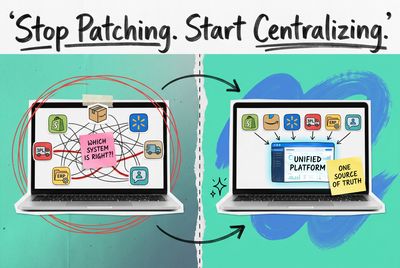
A connector that watches one channel can only report on that channel. When you've got Shopify orders in QBO and Amazon settlements living in a spreadsheet or a second integration, you end up with multiple sources of truth competing for the same lines in your P&L. Your accountant sees it; your month-end close drags; and every new channel you add makes it worse.
The Fix: Normalize Your Order Data Before It Hits QuickBooks
The cleanest solution isn't to find a connector that covers every channel. It's to normalize all your order data upstream — before it reaches QuickBooks at all.
That's what an order management system (OMS) does. An OMS pulls orders in from every channel — Shopify, Amazon, eBay, Walmart, your DTC site — into one place. Every order carries a consistent structure: the channel it came from, the SKUs and quantities, the shipping cost, the discount applied, the revenue, the refund status. The data arrives in QuickBooks as clean, consistently formatted records rather than raw channel exports with different field names and settlement timing mismatches.
This two-layer approach is how established multi-channel brands build their accounting stack: an OMS that owns the order truth, and an accounting connector that moves clean data from the OMS to QBO.
How OmniOrders Cleans Up Your Order Data
OmniOrders is an order management system built for multi-channel e-commerce brands. It centralizes orders, inventory, and fulfillment from Shopify, Amazon, eBay, Walmart, Etsy, and other channels into one platform — so you have one view of every order, regardless of where it was placed.
Here's what that changes for your QuickBooks workflow:
Inventory accuracy across locations. When TSHIRT-BLU-M sells on eBay and you have 12 units split across two warehouses, OmniOrders updates inventory in real time across every connected channel and records the correct allocation. That accuracy carries through to your cost of goods sold in QuickBooks — no more manual adjustments at month end because channel A oversold what was already committed to channel B.
Refunds and returns tracked in one place. OmniOrders has returns management built in. When a customer returns an Amazon order, the inventory restock and the financial reversal happen inside OmniOrders first. The corresponding QuickBooks entry reflects the actual state of that order — not a mystery debit that shows up weeks later in your bank statement.
Clean, channel-level segmentation. Every order is tagged to its origin channel. When you need to break out Shopify revenue from Amazon revenue in your QuickBooks reports, the data is already segmented. You're not manually splitting a blended export and hoping the math adds up.
No-code automation for fewer exceptions. OmniOrders includes a no-code automation engine you can configure to route orders, apply fulfillment rules, and trigger inventory updates based on channel, SKU, order value, or location. Fewer manual interventions mean fewer one-off journal entries that clutter your books.
AI-powered inventory forecasting. Accurate demand forecasting means your inventory positions are planned rather than reactive — which reduces emergency purchase orders, last-minute shipping upgrades, and the accounting exceptions that come with both.
Building the Stack: Shopify → OmniOrders → QuickBooks
Here's how the accounting workflow looks when it's set up correctly:
Step 1 — Connect your channels to OmniOrders. Shopify, Amazon, eBay, Walmart, and any other active channels connect to OmniOrders. Orders and inventory sync in real time. OmniOrders becomes your single source of order truth.
Step 2 — Configure fulfillment and returns. Set routing rules so each order goes to the right warehouse or 3PL, and make sure returns flow back into OmniOrders so refunds are captured accurately before they ever touch QuickBooks.
Step 3 — Connect your accounting sync. Use a tool like A2X, Synder, or your preferred QBO connector to push normalized data to QuickBooks. Because the order data is already structured consistently — one format regardless of which channel the order came from — mapping to QuickBooks accounts is straightforward. Sales, refunds, fees, and payouts each go where they belong.
Step 4 — Reconcile against your bank. With clean data in QuickBooks, bank reconciliation becomes a matter of matching totals instead of hunting for individual transactions buried in batch payouts.
Three Mistakes That Cause Most of the Mess
Skipping channel mapping. Every sales channel formats revenue, discounts, and refunds slightly differently. Before you sync anything to QuickBooks, map each channel's order fields to the correct QuickBooks accounts. Rushing this step is the single most common cause of duplicate or missing entries.
Ignoring Shopify Payments settlement timing. Shopify Payments sends batched payouts, not one deposit per order. Your QuickBooks entry should reflect the payout total, not individual orders — and it needs to account for Shopify's fees being deducted before the money arrives. Most good connectors handle this automatically, but it requires explicit configuration.
Treating refunds as an afterthought. A refund is a multi-step event: the customer gets money back, the inventory (usually) gets restocked, and the original order changes state. If your OMS and your accounting sync don't account for all three steps consistently, you end up with overstated revenue and inaccurate inventory balances — neither of which becomes obvious until month-end close.
Clean Books Start With Clean Order Data
Most QuickBooks sync problems aren't accounting problems. They're data problems. When orders come in from five channels in five different formats, with five different payout schedules and five different refund flows, no accounting connector can clean that up on its own.
An OMS like OmniOrders solves the upstream problem — centralizing and normalizing your order, inventory, and fulfillment data so every channel speaks the same language before it reaches your books. When QuickBooks gets your data from one organized source instead of four competing ones, reconciliation stops being a weekly fire drill and becomes a 20-minute task.
If you're spending real time each week on manual reconciliation, start your free OmniOrders trial to see what centralized order management does for your accounting stack.
Frequently asked questions
Can you connect Shopify to QuickBooks Online?
Yes. Several tools — including A2X, Synder, and MyWorks — connect Shopify directly to QuickBooks Online and handle settlement mapping. For single-channel Shopify businesses, these work well out of the box. Multi-channel sellers typically need an OMS layer to normalize data from all channels first, so the accounting connector receives consistent records rather than raw exports from four different marketplaces.
What causes double entry when syncing Shopify to QuickBooks?
Double entry usually happens when the same transaction is recorded from two different sources — for example, an order appears in both a Shopify connector and a manual import, or a refund gets logged once in the Shopify export and again when the payout clears the bank. Centralizing order data in an OMS before it reaches QuickBooks eliminates most of these conflicts.
How do multi-channel sellers handle QuickBooks reconciliation?
The most reliable approach is to centralize all orders in an OMS first — one system with every order from every channel — then push normalized data to QuickBooks through an accounting connector. This removes the problem of four channels generating four different data formats that all need to reconcile against one bank account.
Does OmniOrders connect to QuickBooks?
OmniOrders centralizes your multi-channel order, inventory, and fulfillment data into one platform. For the QuickBooks connection specifically, you use your preferred accounting sync tool to push from your centralized order data to QBO. The advantage is that OmniOrders gives your accounting connector clean, consistently structured data — rather than raw, per-channel exports with different formatting and settlement timing — so the mapping to QuickBooks accounts is reliable.
Start your 14-day free trial
See how OmniOrders connects your sales channels, 3PLs, and carriers into one operational layer — free for 14 days, no credit card.